How to Use Claude Code: A Guide to Slash Commands, Agents, Skills, and Plug-ins
I've been going deep on Claude Code. I'm finding this has been a better strategy for getting value out of AI—rather than trying every new tool on the market.
By focusing on one tool, I've been able to learn how to use Claude Code's building blocks. I confidently know how and when to use slash commands, agents, skills, plug-ins, and even hooks.
I know there is a lot of confusion out there about these different features. So today, we are going to do a deep dive on how to use Claude Code effectively.
If you are new to the series, this article is the sixth in the series:
- Claude Code: What It Is, How It's Different, and Why Non-Technical People Should Use It
- Stop Repeating Yourself: Give Claude Code a Memory
- How to Use Claude Code Safely: A Non-Technical Guide to Managing Risk
- How to Choose Which Tasks to Automate with AI (+50 Real Examples)
- How to Build AI Workflows with Claude Code (Even If You're Not Technical)
- How to Use Claude Code: A Guide to Slash Commands, Agents, Skills, and Plug-ins
- Context Rot: Why AI Gets Worse the Longer You Chat (And How to Fix It)
I have not received any compensation from Anthropic for writing this series. And you can trust that if that ever changes, I will disclose it. This is not only required by the FTC here in the US, but I strongly believe it is the right thing to do. You can count on me to do so.
As you get into building out your first automations, it can feel overwhelming. Anthropic has added a number of features to Claude Code and it can be hard to know what to use when.
Today, we'll dive into the building blocks available to us in Claude Code. We'll learn when to use each one, how to use them in combinations to harness Claude's power, and we'll also discuss some of the limitations of these tools—despite the hype.
🎖️ This Product Talk Article is brought to you by New Year, New Habit: The 5-Day Customer Interview Challenge. Become a more confident interviewer in less than a week. You'll conduct one practice interview a day, get personalized and detailed feedback so you know exactly what to improve, and we'll be giving out daily prizes to the most improved. Join the challenge today.
🎖️ This Product Talk Article is brought to you by Just Now Possible, a podcast about how AI products come to life—straight from the builders. If you are being asked to add AI features to your roadmap, you don't have to start from scratch. Get a head start by hearing how other teams are navigating similar challenges. Find it on YouTube, Apple Podcasts, and Spotify.
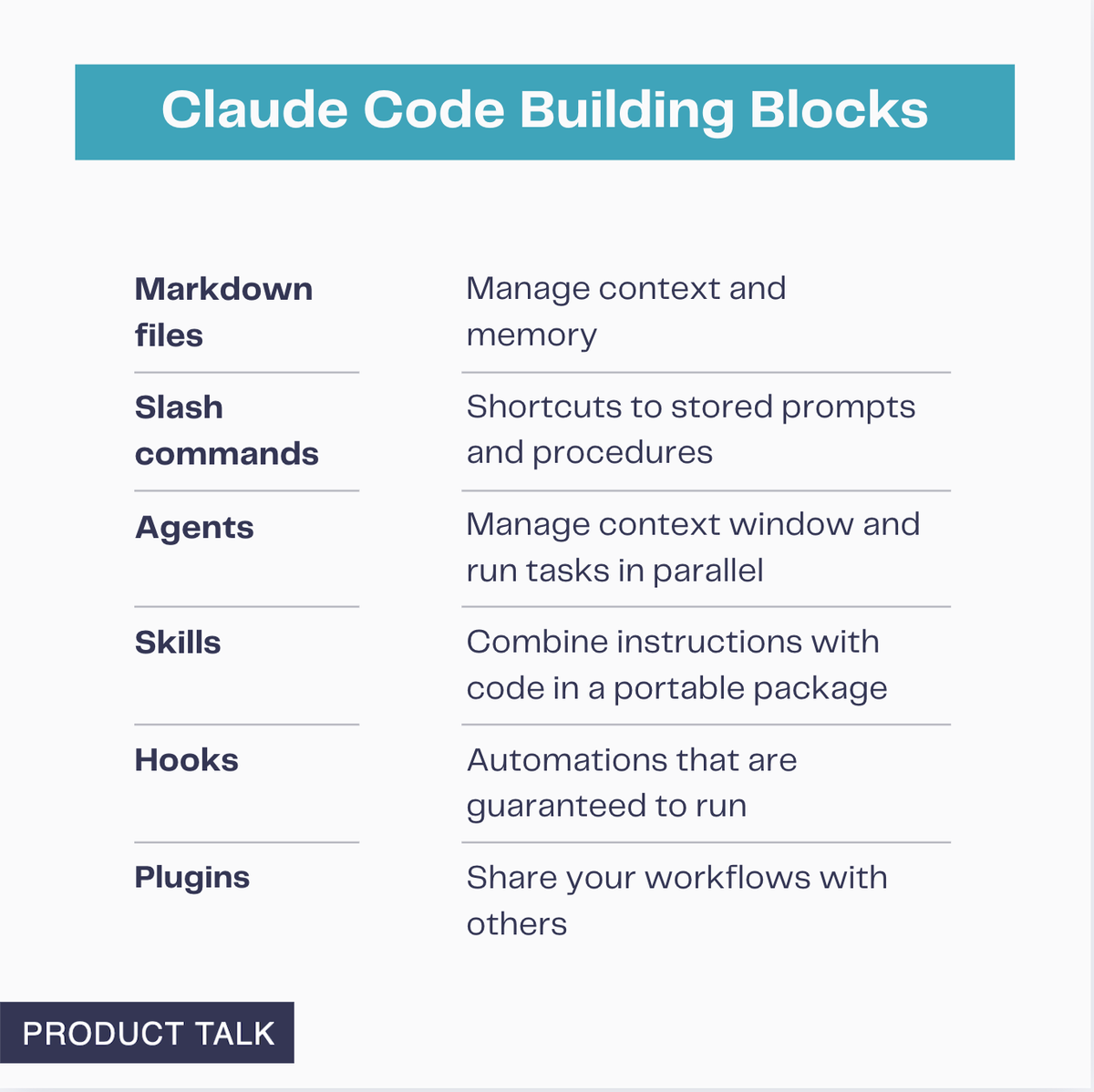
6 Claude Code Features That Unlock Powerful Workflows
Whether it's capturing context in markdown files, running slash commands, or executing tasks in parallel with sub-agents, Claude Code gives us a lot to work with. We'll start with an overview of how each of these features work and when to use them.
1. Markdown Files: Managing Claude's Context and Memory
The more Claude knows about you, your products or business, and how you like to work, the better it can help you do your job.
If we engage with Claude in the web app, every conversation starts from scratch. Sure, we can use Claude Projects to share context across chats, but each Project is isolated from the others. This means we have to spend a lot of time uploading and downloading files, making sure we start our chats in the right context, and copying and pasting in and out of our conversations.
With Claude Code, we have direct access to our file system. This means we can capture key context in markdown files and point Claude to them on an as-needed basis. Claude can capture conversations in files and even edit the files we are working on directly. This enables much better collaboration with Claude.
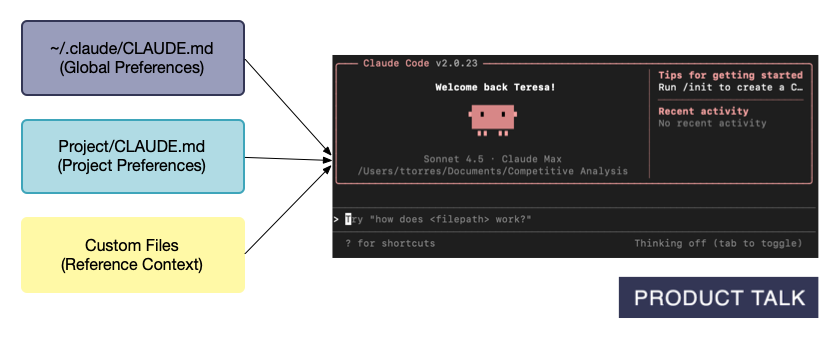
I've already covered using markdown files to manage Claude's context in this article: Stop Repeating Yourself: Give Claude Code a Memory.
I'll quickly recap some of the highlights:
- Claude loads a global CLAUDE.md (stored in ~/.claude/CLAUDE.md) into every conversation. This is where you want to define your personal preferences that apply to every conversation.
- You can also have a CLAUDE.md file in every project folder. This is where you can define preferences that are specific to that project. For example, my writing preferences are different from my coding preferences.
- But don't use your CLAUDE.md files to overload Claude with too much context. You only want to give Claude what it needs to do the task at hand and nothing more. This is where reference files come in. You can keep this in any folder in your file system and simply reference them in the relevant CLAUDE.md so that Claude knows where to find them when it needs them.
If you want to learn more about this strategy, read: Stop Repeating Yourself: Give Claude Code a Memory
You'll see that learning how to use the file system well to create persistent context and memory for Claude is going to be a key design pattern.
2. Slash Commands: Shortcuts to Stored Prompts and Procedures
When I first started using ChatGPT and Claude in the browser, I started saving my commonly used prompts in Apple Notes. Instead of having to start from scratch each time, I'd simply copy and paste.
When I moved from the browser to Claude Code, I started to move my prompts to markdown files. But this didn't distinguish the main prompt (the instructions I wanted the agent to follow) from the added context (other markdown files it needed to reference).
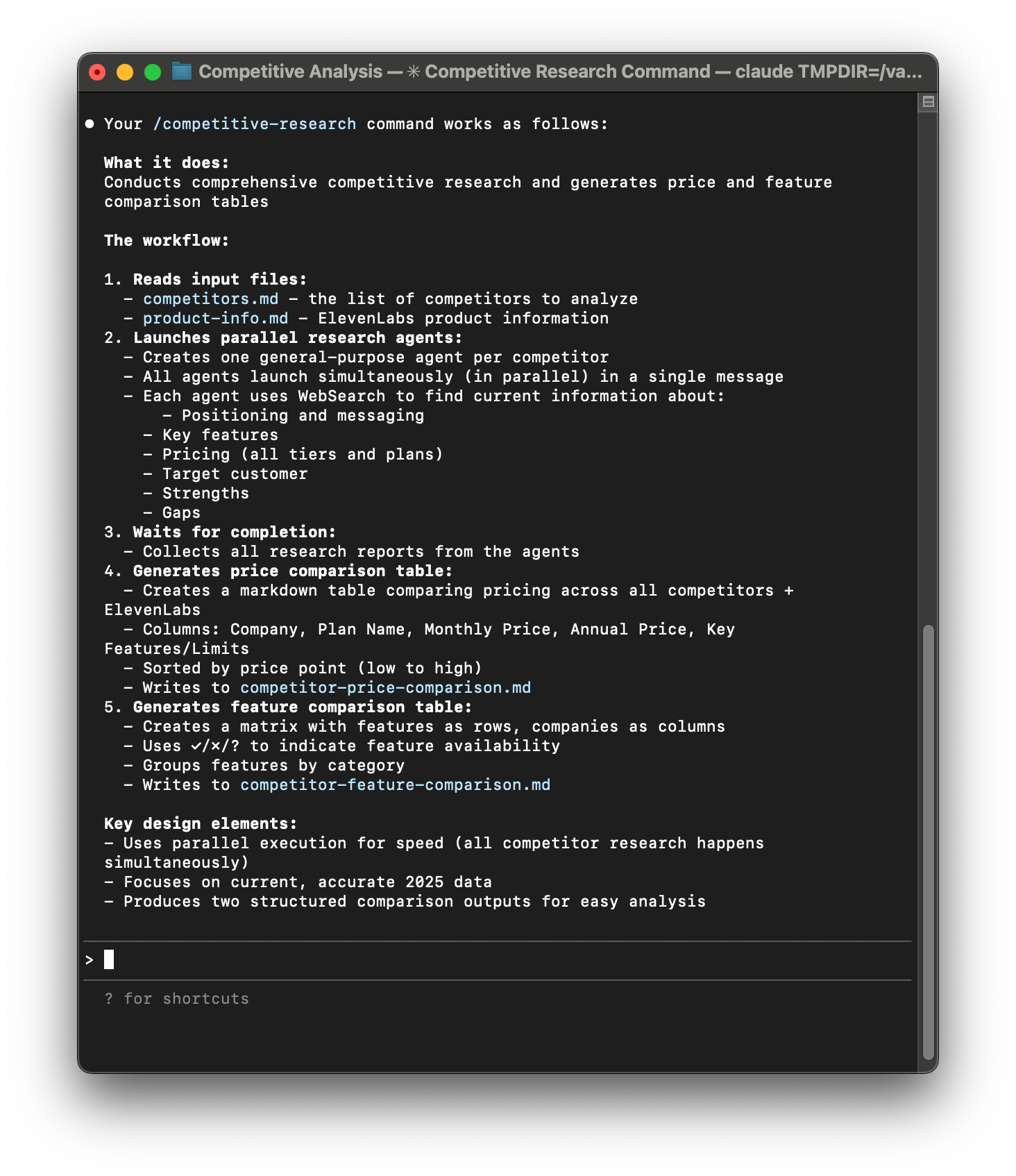
Thankfully, Claude Code has slash commands—named as such because they start with a /. In the first article in this series, we created a /competitive-research command and I've also shared details about my /today command and many of my writing slash commands (e.g. /headlines, /seo).
So what are these slash commands? They are prompts or procedures that are stored in a markdown file. In order for Claude to recognize a slash command, the markdown file has to be saved in either your global ~/.claude/commands folder or in a project/.claude/commands.
The name of the file determines the name of the slash command and where you save it determines where you can access it. A slash command stored in your global folder can be used from anywhere, whereas a project slash command can only be used from within that project folder.
My /today command is stored in the context of my Tasks project folder at ~/Vaults/Work/Tasks/.claude/commands/today.md which means it only works when I open Claude from within that folder.
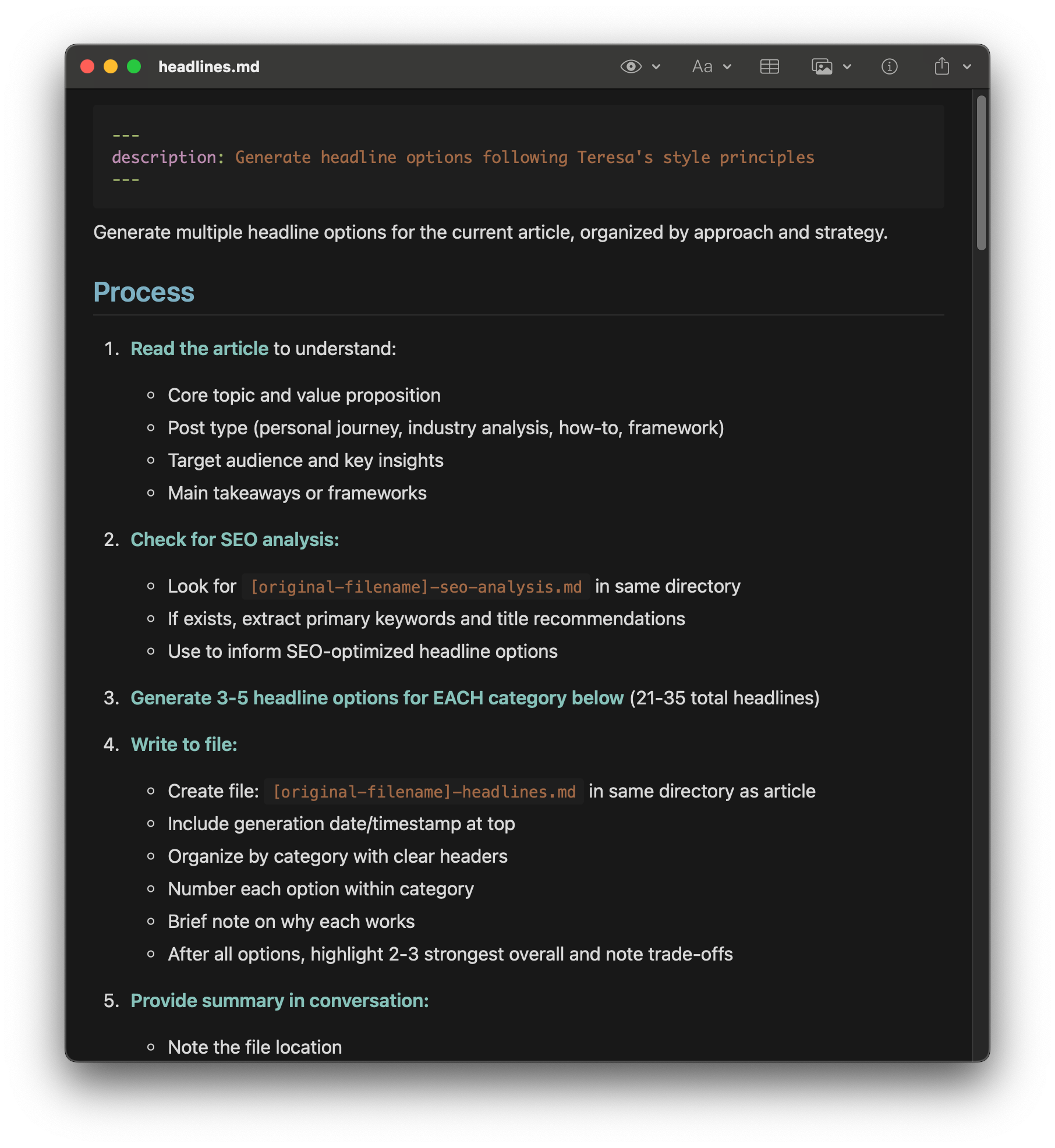
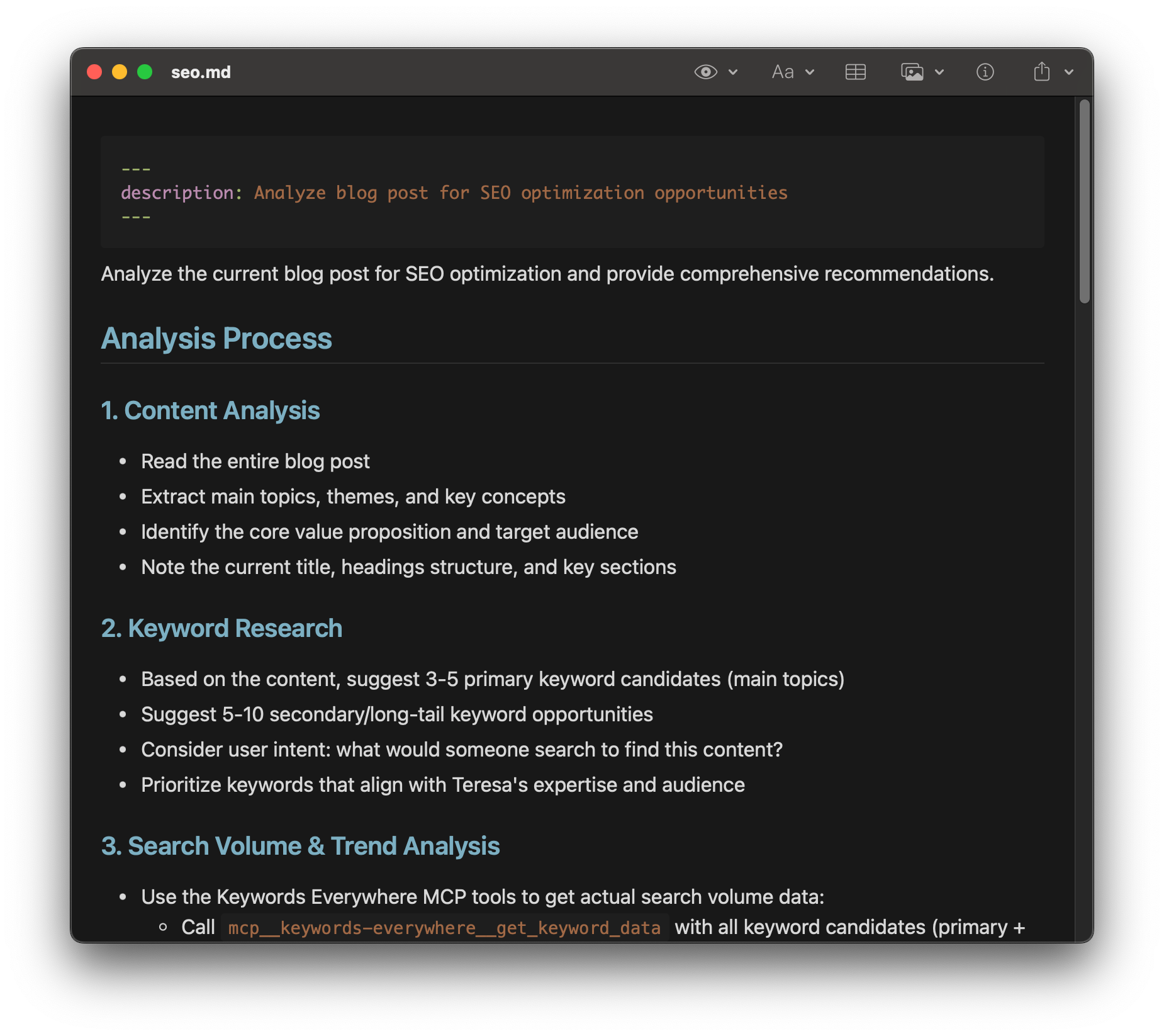
My headlines slash command is a simple brainstorming task, whereas my SEO slash command does in-depth content analysis and uses an API to look up search volume and trends.
Slash commands can be used for almost anything—from a simple stored prompt to an advanced procedure. For example, my /headlines command simply instructs Claude to brainstorm headlines with a little bit of added context about my headline preferences. My /seo command, on the other hand, is a much more complex procedure that analyzes a blog post, identifies potential keywords, generates semantic variants on those keywords, uses an API to look up keyword volumes, and then generates an in-depth analysis of how I can make SEO improvements to an article.
Slash commands are great for any task or workflow that you use on a regular basis and you want to explicitly invoke yourself. Use slash commands when you want to decide exactly what Claude does and when. We'll see in the next section that there are other building blocks where Claude can decide when to invoke a workflow.
3. Agents: Manage Your Context Window and Run Tasks in Parallel
Everyone is calling everything an agent these days. So let's start by getting clear about the term.
In Claude Code, there are three types of agents.
- Claude is itself an agent—meaning it has access to a set of tools, decides on its own when and how to use those tools, and makes a decision about when it has completed its task.
- Claude can spawn sub-agents. If you see Claude use the Task command, that's Claude spinning up a general-purpose agent to help it do something.
- You can define user-designed sub-agents and tell Claude exactly when and how to use them.
The second and third types are sub-agents and both are important building blocks when designing AI workflows.
So what's the deal with sub-agents? They help us do two things we couldn't otherwise do. 1) They help us manage the context window and 2) they help us do tasks in parallel.
Understanding the Context Window (And Why It's Our Job to Manage It)
In any conversation with an LLM, there is a fixed context window. This is the maximum number of tokens that the LLM can work with at once.
Today, context windows are large—ranging from 200,000 tokens to 1 million tokens, depending on the LLM that you are using. Claude has a 200,000 token context window.
However, we are learning that LLM performance degrades as the context window fills up. If we want high-quality output, we don't want to work with a full context window.
Claude Code automatically manages the context window for you. As you get close to the context window limit, you'll see a message that Claude is compacting the conversation. It's basically summarizing the conversation as a means of reducing the size of the context window.
Claude Code (in VS Code) recently started compacting the context window when it gets to 75% full. This is a way of ensuring higher-quality output.
But compacting is slow and interrupts tasks. And there are things that we can do to delay the context window filling up. One of them is to offload tasks to sub-agents.
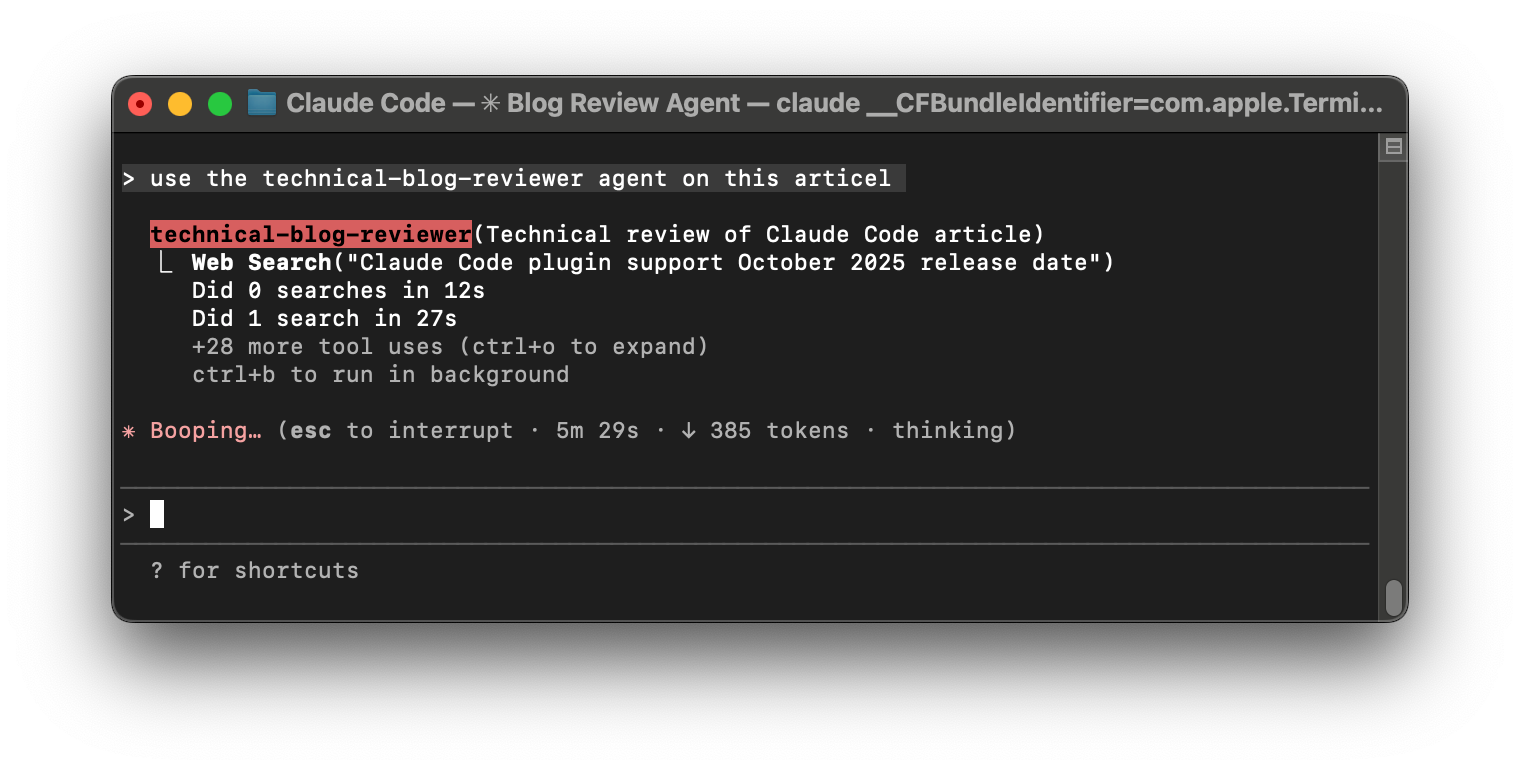
Sub-agents work in their own context window and report back to the main agent. For example, Claude might spawn a sub-agent to search the web. When Claude searches the web, the search results get added to the context window. If it has to conduct multiple searches before it finds an answer, all of those search results get added to the context window. You can blow through 200,000 tokens pretty quickly this way.
By launching a sub-agent to conduct the web searches, all those search results end up in the sub-agent's context window and the sub-agent simply reports back to the main agent what it found. This keeps the main agent's context window clean.
This is a very effective tactic for when Claude needs to search through a bunch of stuff to find something. It also works well when Claude needs to explore your code base or your recent writing. The sub-agent can do the exploration and report back a concise summary for the main agent.
Running Tasks in Parallel Unlocks Speed Benefits But Eats Up Tokens Quickly
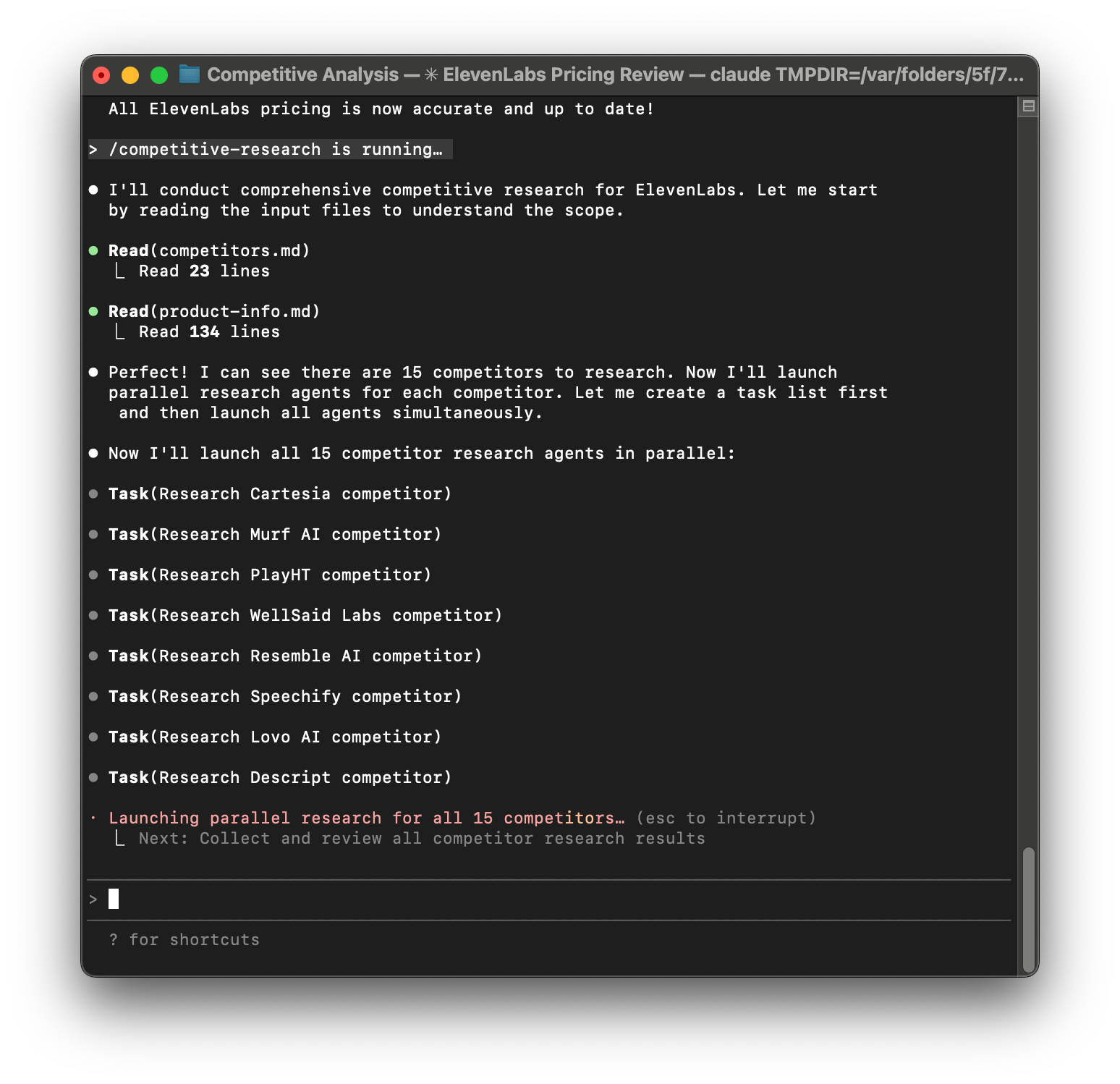
The second advantage of sub-agents is Claude can spawn multiple at once. If you ask Claude to research pickup trucks for you, it could spawn one agent to research Fords, another to research Chevys, and another to research Toyotas. Each sub-agent has its own context window, can execute a series of searches, and can report back its findings to the main agent.
Instead of researching the three truck companies sequentially, the agents can work in parallel. This gets you results much quicker. But if you are on a Claude Pro plan, be warned, it can also eat up your usage quickly, as it uses a lot of tokens.
I like to run tasks in parallel whenever I need to do a similar activity lots of times. We saw this in the /competitive-research workflow. We used sub-agents to research each competitor. I also use agents to fact-check different sections of an article, summarize different sections of an academic paper, filter my research digest, and much more.
General-Purpose Sub-Agents vs. User-Defined Sub-Agents
Claude has a general-purpose agent that it can invoke whenever it needs to. You'll see Claude use the Task tool or the Explore tool. Both of these tools spawn sub-agents that report back to Claude.
But you can also define your own sub-agents. Agents are like slash commands. They are defined in markdown with some specific front matter, they live in either a global context (~/.claude/agents) or in a project context (project/.claude/agents), and where they are defined determines where you can use them.
Front matter is a small block of information at the very top of a file that describes the file itself—like a label on a folder. It sits between two lines of three dashes (
---) and contains simple details like a description or title. You don't need to memorize the format—just ask Claude to create the slash command for you and it will handle the front matter automatically.You can ask Claude explicitly to invoke one of your user-defined agents. For example, you could say, "Summarize this paper using the research-summarizer agent." Or you can simply ask Claude to summarize the paper and it likely will recognize it has a sub-agent specific for that task. The latter, however, requires that you have a good agent description in your front matter so that Claude knows when to use it.
You can also use sub-agents in your slash commands. For example, a stored prompt or procedure can instruct Claude to use specific sub-agents. You'll want to do this when you either need to manage the context window or want to speed things up by doing tasks in parallel.
4. Skills: Combine Custom Instructions with Code in a Portable Package
Skills are the newest building block added to Claude Code. There's a lot of hype around skills, but I've had mixed results.
Skills allow you to store prompts and procedures (like slash commands) into a skill. Skills, unlike slash commands however, can be invoked by Claude directly (like agents). And they have the added benefit of being able to bundle scripts, so you can extend Claude's functionality by giving it access to deterministic code.
Another key difference is skills can be used outside of Claude Code. Claude on the web (Claude.ai) and Claude Desktop also support skills, so you can define them once and use them everywhere. This is a big deal for teams that want to share skills across platforms.
Skills, like slash commands and agents, are defined in an md file with specific front matter. They are also stored either globally (~/.claude/skills/) or in a project context (project/.claude/skills). You might be noticing a pattern—Anthropic is consistent with where you can define all of the different building blocks.
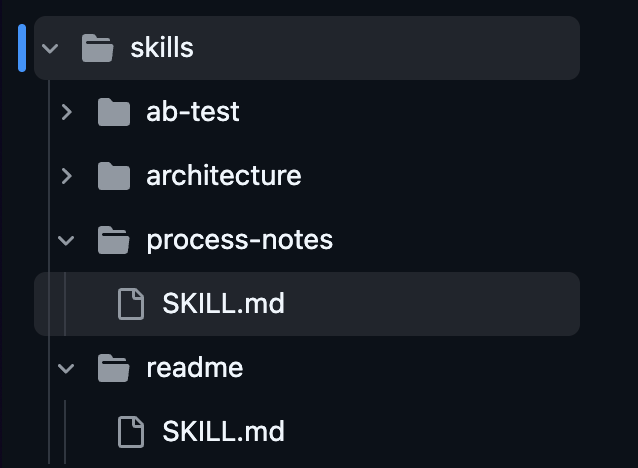
Skills have one key difference. You don't define a skill by naming the md file. Since skills can bundle scripts, skills are named by a directory. The skill itself is defined in a SKILL.md file inside that directory. Related scripts and context can also go in that directory.
I've experimented a lot with skills. I like the ability to bundle scripts with prompts. But I've struggled to get Claude to invoke a skill without me explicitly asking it to. For example, I have a process-notes skill. If I ask Claude to update process notes, it won't use the skill. It will just read the file and update it. Instead, I have to always say, "update process notes and use your skill." This is too verbose for me. So I simply created a /process-notes slash command.
One of the key differentiating features of a skill is Claude is supposed to recognize when to invoke them. But I haven't had much luck with this. I recently have seen some improvement by adding a list of my skills into my Claude.md global file, but this feels like a hack. Anthropic already makes a list of skills available to Claude. But I suspect this will get better with time.
Skills are currently a great way to bundle prompts, context, and code into a package that you can easily share across the web, desktop app, and Claude Code. It's also a great way to share workflows with your team.
5. Hooks: Automations That Are Guaranteed to Run
One of the challenges with LLMs is that no matter how precise your instructions are, the LLM may follow them differently each time. This is rooted in the nature of how LLMs work.
But there are some cases when we need things to always work the same. Every time. This is where deterministic code comes in.
Hooks let us tie deterministic code to specific moments in time. Anthropic defines the following hooks:
- PreToolUse: Runs before tool calls (can block them)
- PermissionRequest: Runs when a permission dialog is shown (can allow or deny)
- PostToolUse: Runs after tool calls complete
- UserPromptSubmit: Runs when the user submits a prompt, before Claude processes it
- Notification: Runs when Claude Code sends notifications
- Stop: Runs when Claude Code finishes responding
- SubagentStop: Runs when subagent tasks complete
- PreCompact: Runs before Claude Code is about to run a compact operation
- SessionStart: Runs when Claude Code starts a new session or resumes an existing session
- SessionEnd: Runs when Claude Code session ends
When you define a hook, you are basically telling Claude to always take this action at this exact time. For example, you might define a hook that always pushes Claude notifications to your desktop notifications or to Slack notifications, so you know when Claude needs your input without having to keep it in focus. Or you might define a hook that always executes a script at the start of every session. This might be a good way to aggregate the appropriate context for a given project.
I don't currently use hooks. But I can see some potential areas where they could be useful. For example, I use Claude to manage my daily tasks. One challenge I often run into is Claude thinks it's 2024. I wrote a calculate dates Python script that outputs today's date, tomorrow's date, the start and end date of the current week, and the start and end date of the next week. Claude uses this information to understand the dates related to my tasks. Now I can say things like, "create this new task and make it due tomorrow" and Claude will set the date correctly.
This script currently runs as part of my /today slash command. But it also runs as part of my /generate-research-digest command—another workflow I have for keeping up on academic research. They both need to understand today and tomorrow's dates.
Instead of running this script multiple times in the context of these slash commands, I could define a hook so that it always runs when I start a new session inside my Tasks folder. Then both slash commands would already have the data context when it needs it.
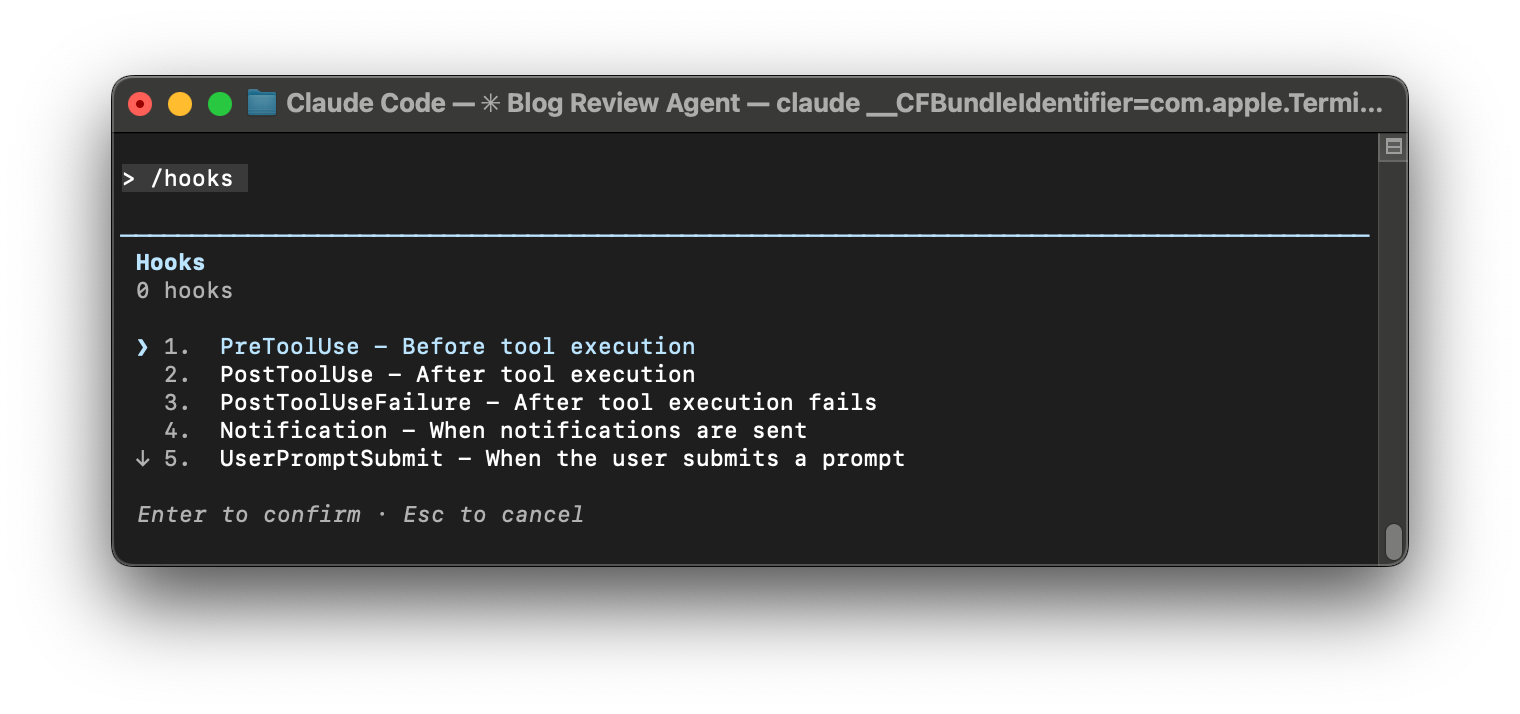
Claude Code has an interactive interface for defining hooks. You can run the /hooks command to access it.
6. Plugns: Share Your Workflows With Others
Plug-ins are a way of bundling all of the other building blocks together into a package that is shareable via a marketplace.
Okay, there's a lot to unpack here. I find the language and mental model for plug-ins and marketplaces to be extremely confusing. But stay with me—it's a helpful building block if you want to share your workflows with others.
A marketplace is a collection of plug-ins from the same source. For example, Anthropic has a marketplace where you can find all of their public plug-ins. A plug-in is a collection of related slash commands, agents, skills, and hooks that are bundled together.
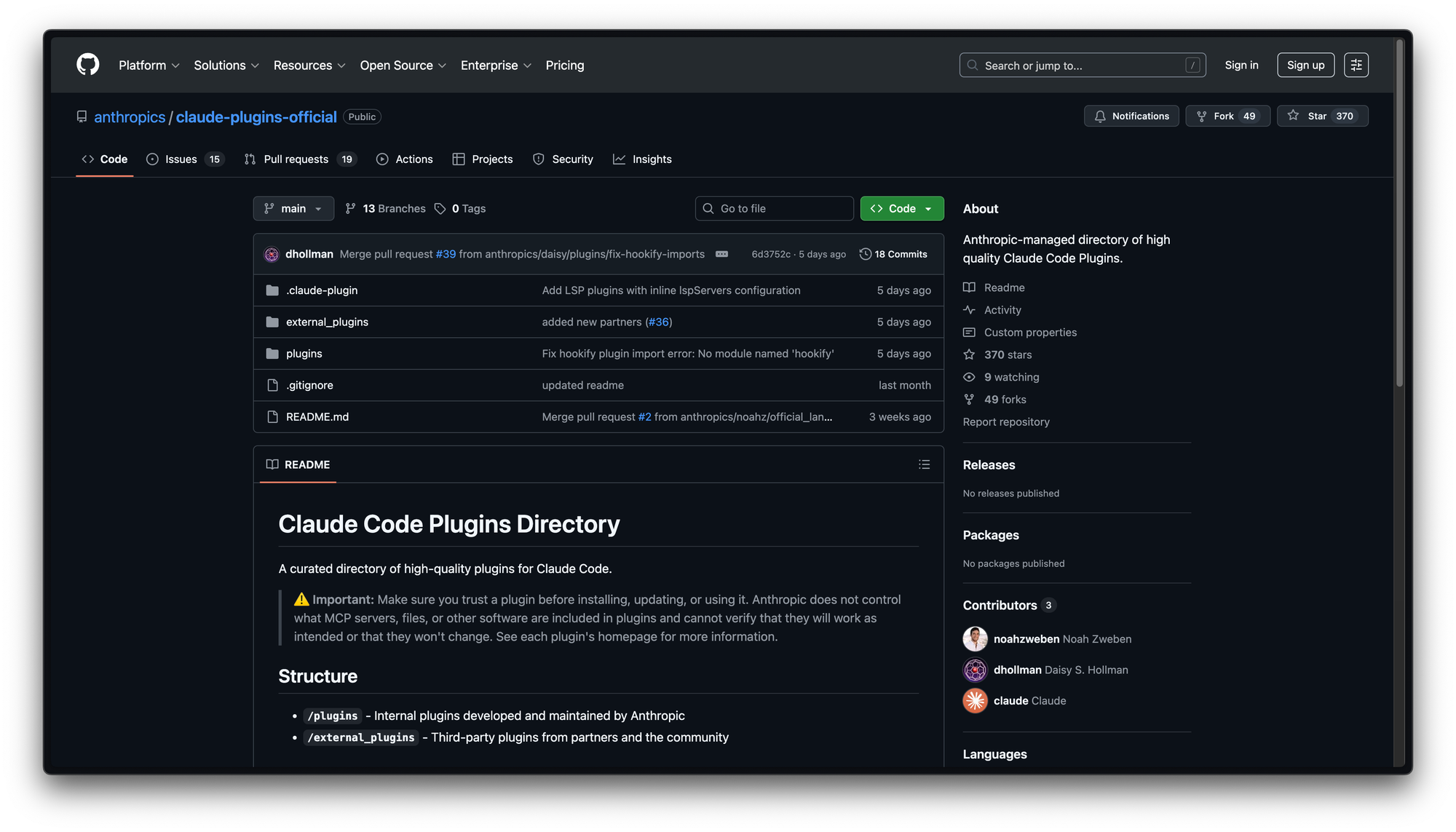
Technically, both plug-ins and marketplaces are just public git repositories hosted on GitHub. If you are new to git and GitHub, here's what you need to know: Git is software that helps software engineers manage code versions and conflicts when multiple engineers work on the same code base. A repository is just a collection of related code. GitHub is a cloud host of git repositories.
When a repository is public, anyone can copy that repository to their own computer and use that code. So Anthropic is building on a framework that is already common in the software engineering world.
However, they wanted to make it easy for you to discover and explore plug-ins from within Claude Code itself, so they built a /plugin command that lets you add marketplaces and plug-ins.
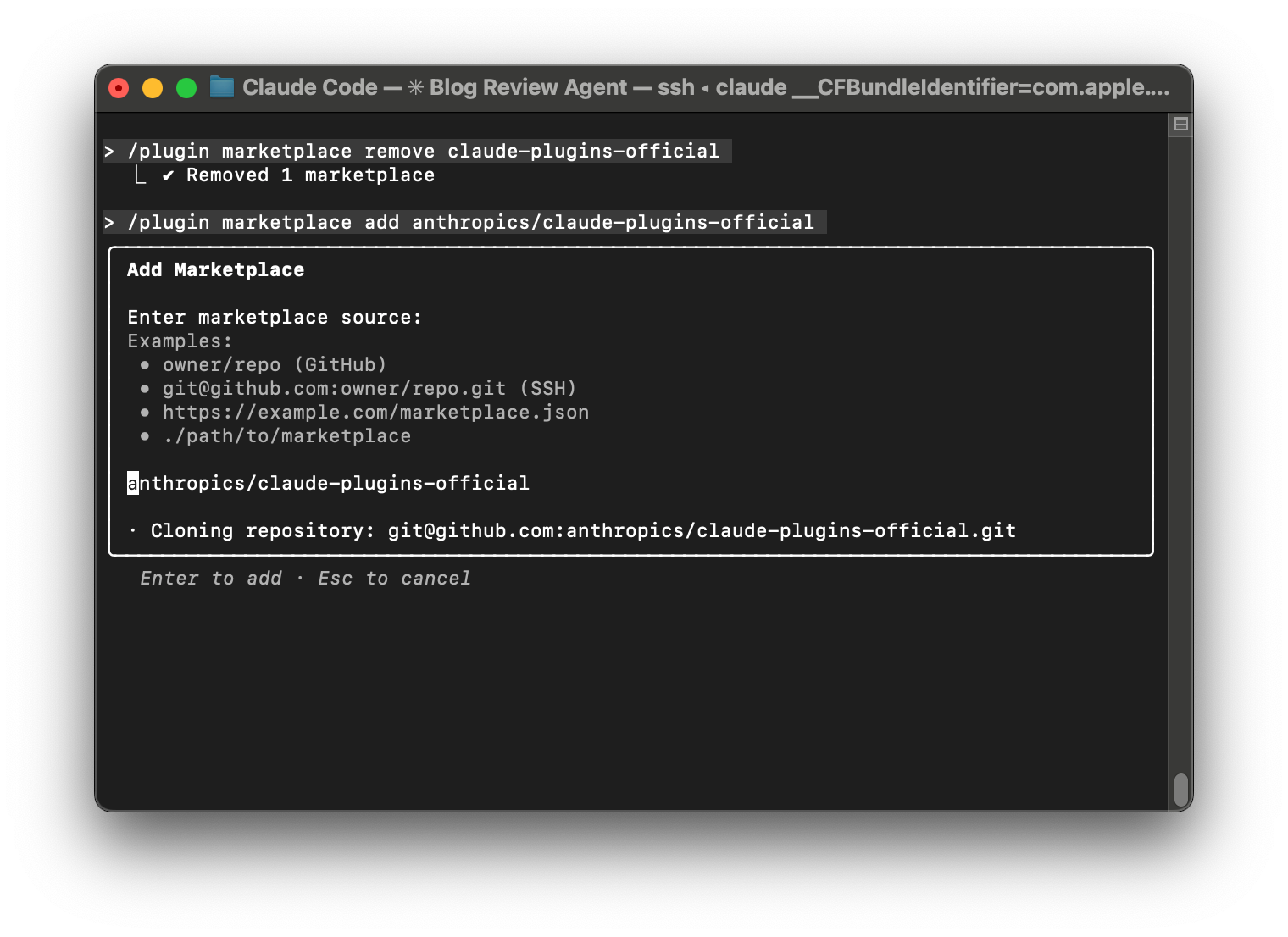
You first need to discover and add a marketplace. And then you can explore the plug-ins that are available through that marketplace.
For example, you can add the official Anthropic marketplace to get access to the public plug-ins they've shared by typing: /plugin marketplace add anthropics/claude-plugins-official
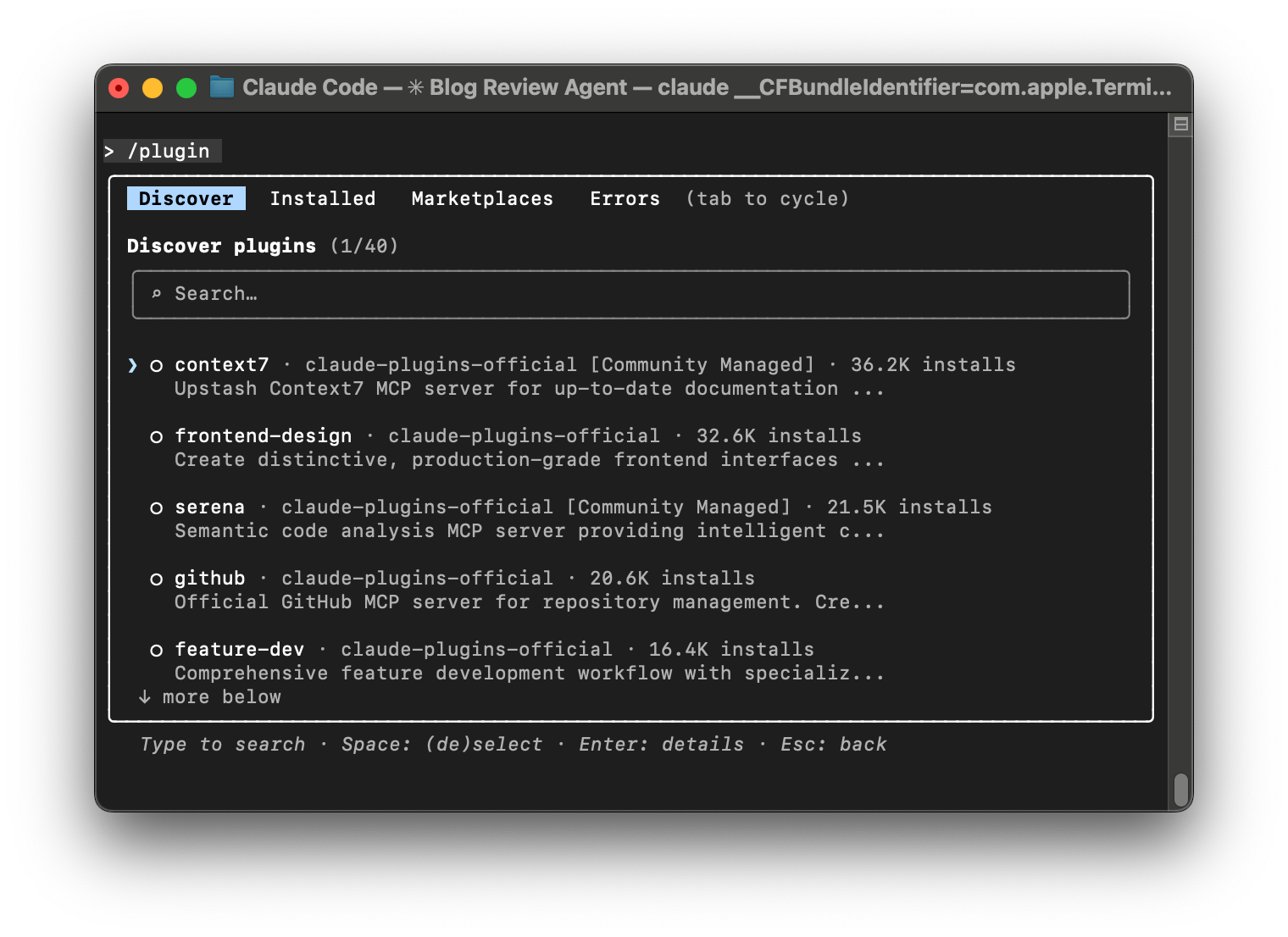
Then from within the /plugin interface you can tab to Discover to see what plug-ins they've made available.
And if you are familiar with GitHub, you can explore their public repos here.
This is a great way to use workflows that other people have created. However, remember, plug-ins can include code (both in skills and in hooks). You should never install and let Claude run code on your computer that you aren't familiar with if you haven't reviewed it first. Revisit our safety article if you need a refresher on how you can do this.
When To Use Each Building Block
As you design your workflows, consider which building block might be the best fit for your needs.
| Building Block | Purpose | Who Invokes It | Where It Works | Bundles Code | Easy to Share |
|---|---|---|---|---|---|
| Markdown files | Manage context and memory | Claude loads as needed. | Claude Code | No | Copy the file |
| Slash commands | Shortcuts to stored prompts and procedures | You type /command | Claude Code | No (but can instruct Claude to call scripts) | Yes, via plug-ins |
| Agents | Manage context window and run tasks in parallel | Claude can invoke and you can ask Claude to invoke | Claude Code | No (but can instruct Claude to call scripts) | Yes, via plug-ins |
| Skills | Combine instructions with code in a portable package | Claude (in theory) | Web, Desktop, & Claude Code | Yes | Yes, via plug-ins |
| Hooks | Automations that are guaranteed to run | Triggered by events | Claude Code | Yes | Yes, via plug-ins |
| Plug-ins | Share your workflows with others | N/A | Claude Code | Yes (bundles everything) | Yes, via marketplaces |
To help illustrate what each building block is good for, I'll provide a detailed summary of several of my own plug-ins and explain why I used each building block. We'll look at how my:
- Task management plug-in combines context, slash commands, and Python scripts to help me manage my daily to-dos.
- Project Docs plug-in combines slash commands, skills, and a user-defined agent to keep my project documentation up to date for both me and Claude.
- Research System plug-in combines slash commands, Python scripts, Claude's built-in sub-agent, and a user-defined sub-agent to help me stay up to date on academic research.
For each, I'll share a video showing how I use each plug-in, I'll link to the public repo so you can explore the files and see how I use the different building blocks (you can also try them out yourself if you want), and I'll explain why I made different design decisions.
Product Talk is a reader-supported publication. These detailed walk-throughs are for paid subscribers. Click on the subscribe button to get access.