How to Share Your AI Context and Skills Across Devices
Share this article | Listen to this article ($)
I've been hosting Claude Code office hours for the past few months and by far the most common questions I get are around sharing context and skills.
I'm hearing from a lot of people who are leading AI adoption in their companies. They've developed robust workflows that draw on a rich context system. But they don't know how to share their system with their colleagues.
I recently encountered this exact same problem. I mostly work in single-player mode. But I do have a full-time admin and I've been working to share context and workflows with her. I also have multiple devices (a Mac Mini for my day-to-day work, a MacBook Air for when I travel, and my iPhone) and I want all my context and workflows to work across devices.
Today, I'm going to share my setup. We'll cover what I store where, how I share different components with my devices and my team, we'll explore the pros and cons of each solution, and how I keep it all up to date.
We'll cover four different syncing services: git/GitHub, Obsidian Sync, Dropbox and iCloud. I'll share what ended up working for me—including my exact setup. You'll learn how to share context files and skills seamlessly.
If you are new to the series, this article is the eight in the series:
- Claude Code: What It Is, How It's Different, and Why Non-Technical People Should Use It
- Stop Repeating Yourself: Give Claude Code a Memory
- How to Use Claude Code Safely: A Non-Technical Guide to Managing Risk
- How to Choose Which Tasks to Automate with AI (+50 Real Examples)
- How to Build AI Workflows with Claude Code (Even If You're Not Technical)
- How to Use Claude Code: A Guide to Slash Commands, Agents, Skills, and Plug-ins
- Context Rot: Why AI Gets Worse the Longer You Chat (And How to Fix It)
- How to Share Your AI Context and Skills Across Devices
I have not received any compensation from Anthropic for writing this series. And you can trust that if that ever changes, I will disclose it. This is not only required by the FTC here in the US, but I strongly believe it is the right thing to do. You can count on me to do so.
The Day I Needed a Skill and Didn't Have It
As you've learned throughout this series, the more context and skills you give the model, the better it performs. As we invest in both—good context and well-designed skills—we inevitably run into challenges with sharing these resources across our devices and with colleagues.
I ran into this right before my interview with Claire Vo on How I AI. I was staying in an AirBnB and only had access to my laptop. I was supposed to demo my /today command and how I set up my context files. But I quickly realized the latest version of my /today command wasn't on my laptop.
Thankfully, I was able to connect to my Mac Mini at home and copy it over. Crisis averted. But the experience stayed with me. I needed a better way to sync my context and my skills across all of my devices.
As I invested more in both, I also wanted to share them with my admin. I had to develop a strategy that worked for both.
The Tools I Tried: What Worked and What Didn't
I already had several ways to share files. I was a Dropbox, iCloud, and GitHub user. Naturally, I tried each as a potential solution. But I ran into some issues.
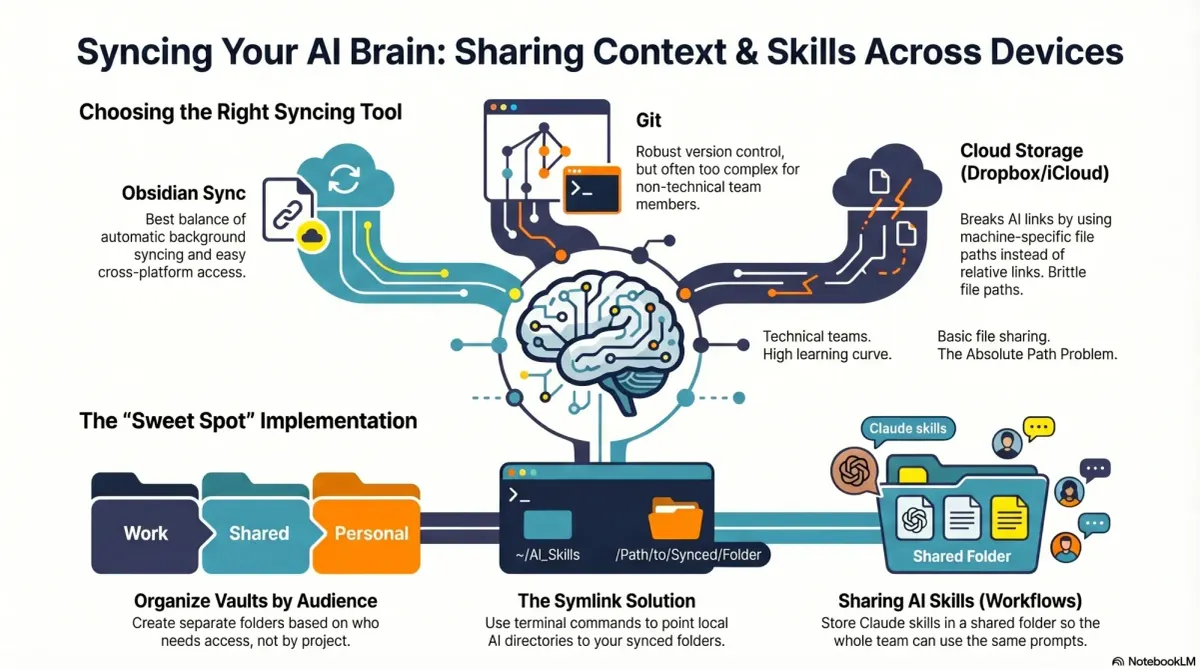
Absolute file paths don't travel well
I started with Dropbox. But struggled to get it to work well. Good context files create a lot of cross-links—index files link to more context files, context files link to each other, and so on.
When Claude creates a link from one context file to another context file, it tends to use the full file path: /Users/ttorres/Library/CloudStorage/Dropbox. This mostly worked for me. I have the same user name on my Mac Mini and on my MacBook. So these references worked in both places. But they didn't work on my phone. They also didn't work for my admin.
I tried telling Claude to always use relative links: ~/Dropbox. But I couldn't get Claude to consistently do this. And we ended up with a lot of broken context links.
This isn't specific to Dropbox. Claude wants to use full file paths because they are more reliable. But full file paths are machine specific. They are brittle across devices and simply don't work when sharing with colleagues.
Claude is trained to use relative file paths when working within a git repository, but I struggled to get it to work reliably in Dropbox.
Skills live in a user directory by default
By default, skills live in ~/.claude/skills. This is a challenge because most syncing services aren't designed to share your ~/ folder.
iCloud is the one exception, but then you can only share across Apple devices. You can't share it with Windows or Android devices.
There is a workaround. You can set up a claude folder in Dropbox and then create a symlink from ~/.claude to your synced claude folder. This allows you to save all your skills, commands, and other Claude Code settings in a service like Dropbox. On each device (whether your own or a colleague's), you then have to set up a symlink to this folder, so that Claude can find the files. We'll cover how to do this a little later.
But I was running into another limitation that made Dropbox a poor fit.
Obsidian on iOS doesn't sync cleanly with Dropbox
By this point, I was used to using Obsidian's file browser alongside my notes. I could quickly jump from one context file to another without having to return to the Finder.
I didn't want to give this up. I tried storing my Obsidian vaults in Dropbox. This meant that I could access my vaults on my Mac Mini and my MacBook Air. But I couldn't figure out how to get the iOS Obsidian app to load my Dropbox vaults.
At this point, I was pretty frustrated. I started reading about how product teams were using GitHub to share context files and I wondered if this was the right strategy for me.
Exploring Git/GitHub
GitHub is cloud storage for git repositories. If you aren't familiar with this world, a git repository is a folder of shared files—it's how engineers collaborate on the same code base.
Each engineer clones their own copy of the repository. They work on their local copy and then when they are ready they push their changes back to the hosted repository on GitHub. Other engineers can then pull those changes to update their local copy. The git software that powers all of this has advanced functionality for managing merges and conflicts.
Git is the powerhouse of file syncing and version control. It could easily handle syncing context files and skills. Claude is much better at using relative links in the context of a git repository. I could open the repository in my IDE and have an easy file browser for my context files. For me, it addressed all of my problems.
But once I thought about my admin, I knew it wasn't the right solution. Git is hard to learn. It requires keeping your local copy up to date. There's no automatic syncing. You manually pull and push changes. I didn't want my admin to have to learn how to use an IDE. This solution was overkill.
Obsidian Sync
I shared my syncing challenges with my husband and he suggested Obsidian Sync. It turns out he was already using it to sync his notes across his devices.
Here's what Obsidian and Obsidian Sync do well: Obsidian is a markdown reader. The files are stored locally on your device—in a folder that you can open through the Finder or File Explorer. There's no proprietary file format. You can read them using any text editor. Claude can read them using bash commands.
Obsidian Sync isn't as complex as git. It has very limited conflict management. But it's easy to use. There are no commands to learn. You open Obsidian, you edit a note, and it automatically syncs to the cloud in the background.
I can access my Obsidian vaults on all three of my devices. I can share a vault with my admin where we can both create and access notes.
I live in Oregon and my admin lives in the Philippines. We only have a few hours a day of overlapping work hours. We rarely edit the same files at the same time, so we don't often have conflicts. So Obsidian Sync is more than adequate for us. It means she doesn't have to learn the complexity of git.
Obsidian also has its own notation for linking between notes. This means that one note can link to another note and those links just work across all devices. Claude can also follow these links. So we don't run into any of the file path issues that I hit with Dropbox.
My Setup: What Lives Where
Through a lot of trial and error, I found a solution that works for me across my devices and works for my admin who works on a Windows desktop and a Mac laptop.
I'll break down exactly what we store where, how we can both make changes, and how we set up each device. We'll also look at some questions you can ask yourself to help you choose the right tool.
Obsidian Sync was the sweet spot for my needs. Let's get into how I set it up.
Product Talk is a reader-supported publication and this article is for paid subscribers. If you haven't already, take a moment to upgrade.